A recolor takes an object that already exists in The Sims 2 and gives it a new look — a different fabric, a new finish, a fresh pattern — without changing its shape. It is the perfect first project because you get a real, usable result quickly, and you learn the core skills every creator needs. Here is the process, start to finish.
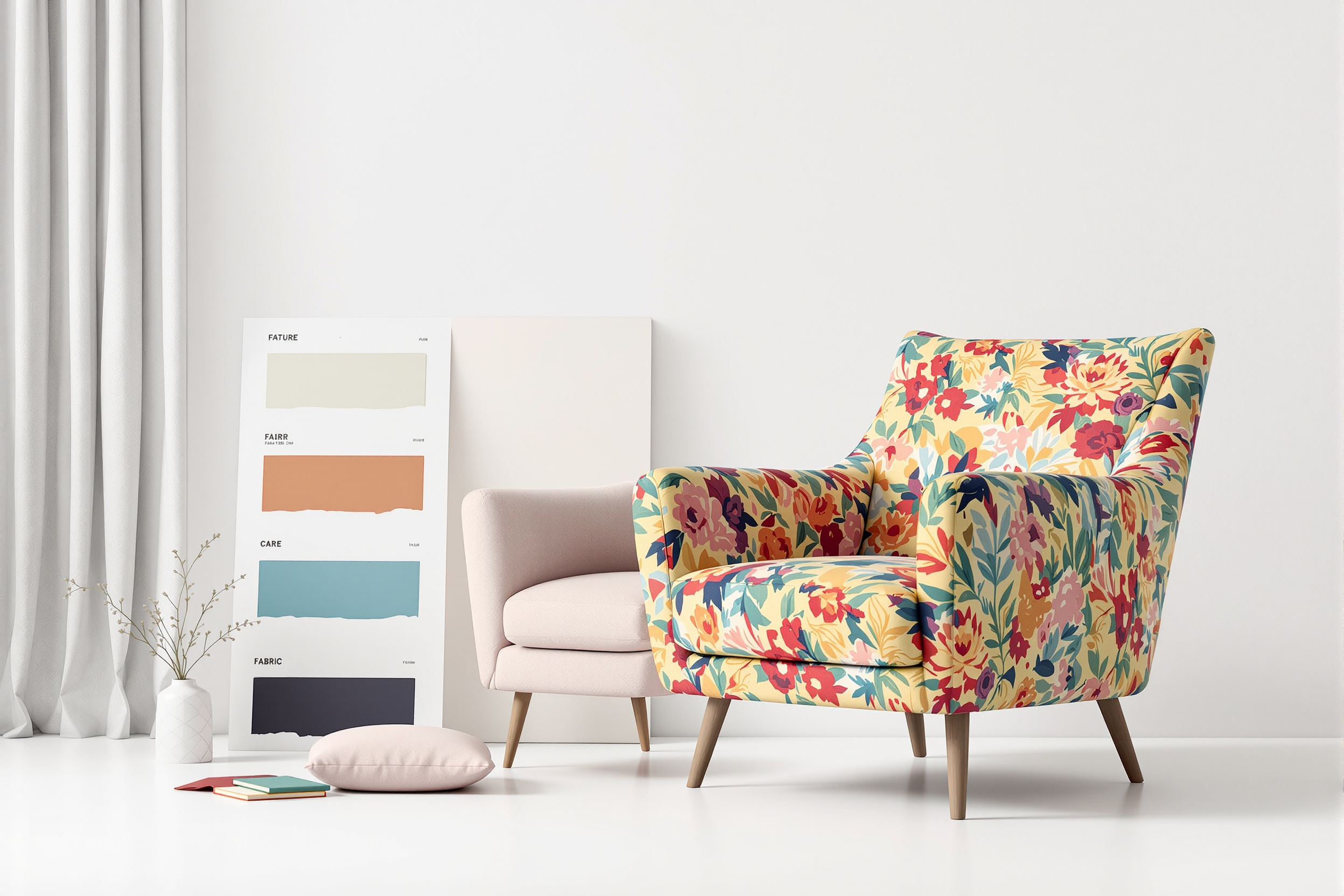
1. Pick your object
Choose something with a big, simple surface for your first attempt — a sofa, a chair, a rug, or a wall hanging. Large flat areas are forgiving and let you see your changes clearly.
2. Extract the texture
Using a community package editor, open the object and export its texture — the flat image that gets wrapped around the 3D shape. This is your canvas. Save a copy of the original before you touch anything.
3. Repaint it
Bring the texture into an image editor and change it: recolor it, add a pattern, apply a new material. The trick is to respect the object's UV layout — the way the flat image maps onto the shape — so your seams line up when it wraps back around the model.
4. Import and re-identify
Put your new texture back into a cloned copy of the object and give the recolor its own identity so the game treats it as a separate, additional option rather than overwriting the original. Players should be able to install your recolor and keep the default.
5. Test and package
Drop the file in your Downloads folder, load the game, and find your recolor in the catalog. Rotate the object, check every angle for seams or stretched artwork, then package the file for sharing. Keep your editable source separate from the file you distribute.
Common beginner snags
- Misaligned seams usually mean the UV layout was not respected — study the original texture's edges.
- Recolor not appearing? Confirm custom content is enabled in the game options (covered in Getting Started).
- Overwrote the original? Your clone kept the original's identity — give it a fresh one and try again.
Once recoloring feels natural, the same texture skills carry straight into custom food and, eventually, full meshing. Browse the tutorials hub for your next step, or see the finished results over on the custom content page.